

Overview
Employees can submit corrections for missed or incorrect punches, it’s important to review and process them promptly to keep time records accurate and payroll running smoothly. This guide will walk you through the simple steps to review, approve, and manage punch corrections with confidence.
Understanding the Fix A Missed Punch Workflow
Enabling Employee Fix a Missed Punch allows employees to submit missed punches and corrections that flow directly into payroll without a system-managed approval step. While some entries may still require review before payroll is processed, others can move through seamlessly without additional action or a clear notification to the employer. If this level of automation isn’t preferred, you may choose to keep this feature turned off and instead implement an internal review process—such as requiring employees to email their manager directly with any punch corrections for approval before updates are made.
Employee Self-Service: Fixing Their Own Missed Punches
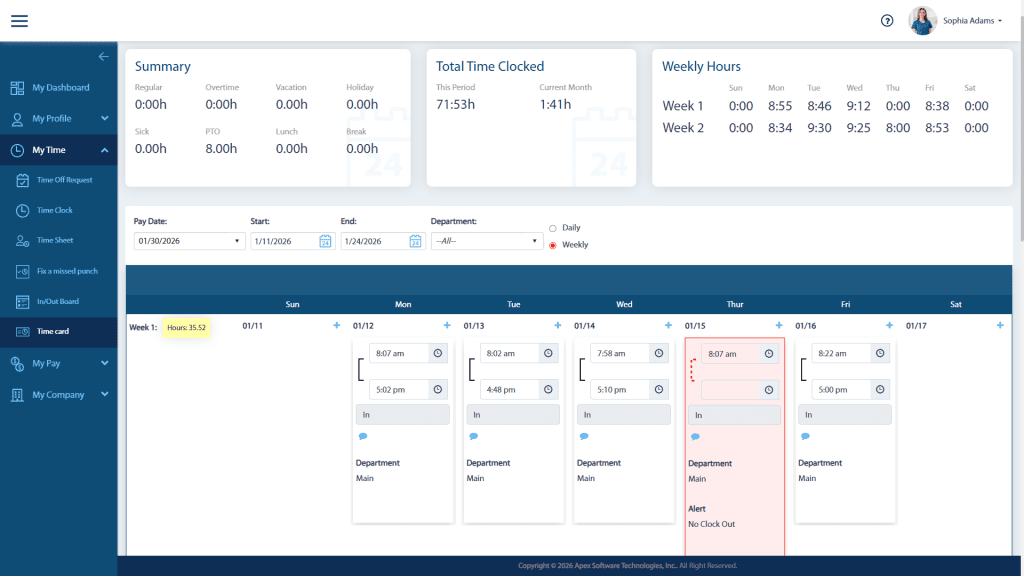
Employees can view their own missing or incomplete punches directly on their Time Sheet or Time Card within the employee portal and initiate the Fix a Missed Punch request themselves. These tools make discovering a missing time punch easy and obvious. Below is a screenshot from the Employee Portal as an example.
Employer Review: Identifying and Correcting Missed Punches
Employers will need to look for missing time punches that employees haven’t discovered and corrected already on their own. There are two primary places to do this from: the Timekeeping Exceptions page or the Timekeeping Transactions page.
Timekeeping Exceptions
Start by navigating to the Timekeeping Dashboard in the menu and view the Timekeeping Exceptions page. This will automatically filter on the time punches that are missing a Clock In or a Clock Out and need to be fixed. See screenshot below.
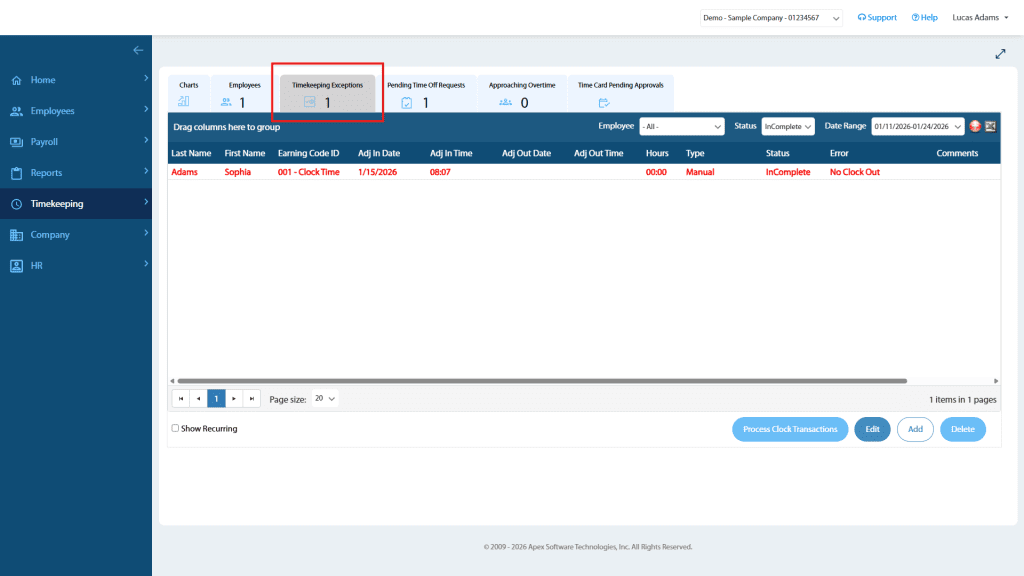
An employer may decide to contact an employee with a missed punch and instruct them to use the Fix A Missed Punch tool from their employee portal account to submit their correction and it will flow into payroll and resolve the error automatically.
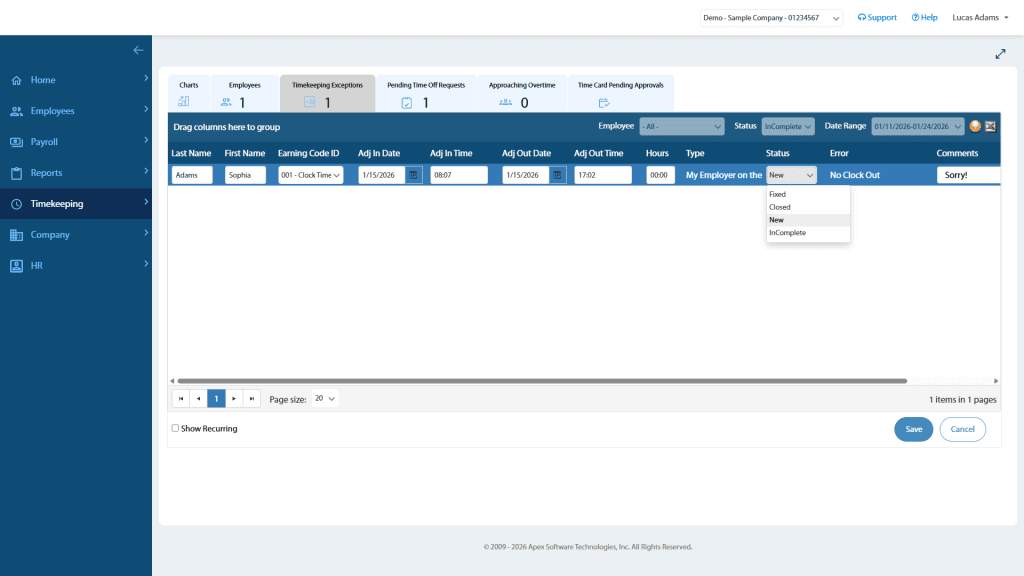
For the employer to correct a missed punch from the Timekeeping Exceptions page, select the applicable row and click the Edit button at the bottom of the page. Enter the Adj In Date and Adj In Time or the Adj Out Date and Adj Out Time, as needed. Be sure to use military time for PM hours (for example, 5:02 PM should be entered as 17:02). After saving, the Hours field will calculate automatically. Update the Status to New, then click Save at the bottom of the page to finalize the correction.
Timekeeping Transactions
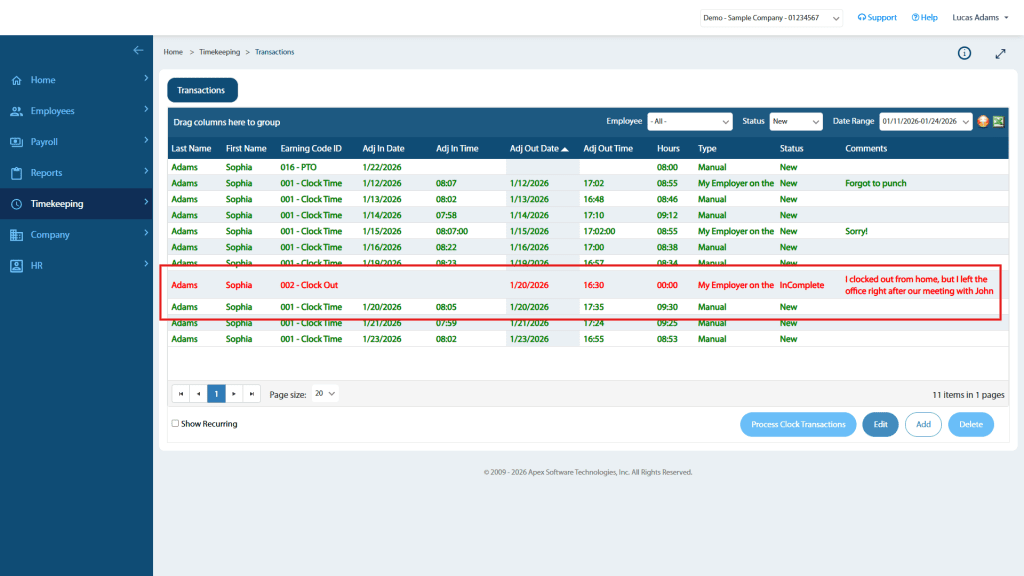
Navigate to the Timekeeping Transactions page from the main menu. Using the filter options to view transactions by Employee or Status, manually scan for records with missing In Dates and Times or Out Dates and Times. The Status will be label InComplete and also report an Error. These lines will also appear as red text. All of these are indicators to make it easy to find records that need to be corrected. See screenshot below and notice the record in red text.

For the employer to correct a missed punch from the Timekeeping Transactions page, select the applicable row and click the Edit button at the bottom of the page. Enter the Adj In Date and Adj In Time or the Adj Out Date and Adj Out Time, as needed. Be sure to use military time for PM hours (for example, 5:02 PM should be entered as 17:02). After saving, the Hours field will calculate automatically. Update the Status to New, then click Save at the bottom of the page to finalize the correction.
Adjusting Erroneous Punches
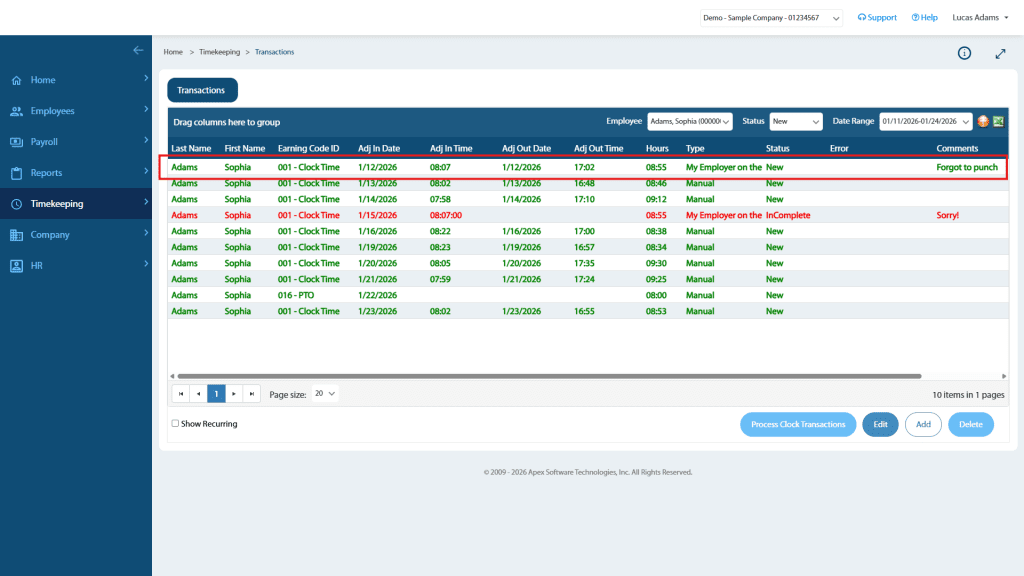
Employees may realize that they forgot to punch out and then punch out late. This will create a completed record. If they submit a Fix A Missed Punch with the correct Clock Out time along with an explanation this will need to be managed by the employer. Select the completed record and click the Edit button at the bottom of the page. Change the Adj Out Time to the correct time as indicated by the InComplete record and Save. Then you may safely select the InComplete record and click the Delete button at the bottom of the page. See the example in the screenshot below.
Reviewing Employee-Submitted In and Out Punch Corrections
To identify when an employee has used the Fix A Missed Punch to correct one or both punches on a day, the only indications will be notes in the Comments column. These are required to be submitted with the punch correction. Scan this column to see which employees and which punches have been corrected.
Summary
Employees can make fixes on their own that flow directly into payroll to streamline corrections and reduce manual steps for the Employer. There are many tools and views available to assist with identifying missing punches and correcting them before processing payroll.