

QUICK GUIDE
- Enter Payroll – Navigate to the Enter Payroll screen and fill in hours and any other pay details needed.
- Preview Payroll – Click the Preview button, and again on next page, review the summary and details report.
- Approve Payroll – Click the Approve button, and again on next page. Funds are withdrawn the next day.
- Confirm – Return to the Dashboard and confirm the dates have advanced to your next payroll cycle.
In this tutorial, you’ll find a Quick Guide for a helpful refresher as well as detailed, step-by-step instructions with screenshots on how to enter, preview, and approve a typical payroll run. Let’s get started!
Step 1 – Enter Payroll
Start at the Dashboard
Locate the Current Payroll Period and the Next Pay Date. Pay attention to these details as they ensure accurate entry of hours for the correct period.
Go to Enter Payroll
Navigate to the Enter Payroll screen by one of two ways:
- Click the Enter Payroll button on the Dashboard, or
- Using the Menu Navigation, go to Payroll > Enter Payroll.
Fill the Enter Payroll Form
In the central section of the screen, you’ll find the Enter Payroll form. Enter the hours for each Hourly employee using the appropriate entry boxes. There is no need to input hours for Salary employees.
Tips:
- Sort the employee list for ease of entry by clicking on any column header.
- Use the tab or arrow buttons on your keyboard for quick navigation.
- Click Save to return and continue entering data later.
Save Data
Click the Save button at the bottom of the screen if you want to return later and finish entering, or to resume the preview and approve steps at a later time.

Step 2 – Preview Payroll
Click Preview Payroll
Click the Preview Payroll button from the Enter Payroll screen. On the next screen, you’ll see important information such as the pay date and period, along with additional processing options. Click the Preview button again on this page to proceed. It will take a moment to process.
View Estimated Payroll Expense
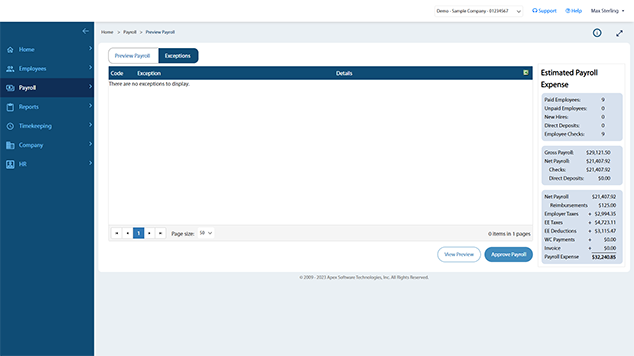
Click “OK” when processing is finished and view the Estimated Payroll Expense summary. This summary may be sufficient for approving your payroll. However, if you want to review more details, click the View Preview button to open the Payroll Detail Report.
Payroll Detail Report
The Payroll Detail Report provides a breakdown of Employee Wages, Taxes, Deductions, Net Pay, and Employer Taxes for each employee. Totals are provided at the bottom of the last page. Click “Exit” to close the report.
Bank Withdrawal
The bottom line of the Estimated Payroll Expense less the total of any Checks is the amount to be withdrawn. Withdrawals are done 3 business days prior to Pay Date, unless expedited service is requested.
Step 3 – Approve Payroll
Click Approve Payroll
To finalize your payroll, click Approve Payroll at the bottom of the screen and click Approve Payroll again on the following screen. Processing will take a moment. Click “OK” to acknowledge that your payroll processing is complete.
Payroll Documents
Your payroll documents are instantly created and available for viewing in one of three ways:
- Immediately after approving payroll, by clicking the View Documents button.
- At anytime from the Dashboard, by clicking the Payroll Docs button.
- At anytime from the Menu, by navigating to Reports > Payroll Documents.
These documents will also be emailed to you during nightly processing and are always archived online for future reference.
Confirmation
The easiest way to confirm that your payroll has been successfully approved, other than viewing the Payroll Documents, is to return to the Dashboard and view the dates in the Payroll section. The Last Payroll will show the period last approved, and under Current Payroll, the Next Pay Date will have advanced accordingly.