

Step-by-step instructions for completing employee onboarding, including account setup, tax withholding forms, direct deposit enrollment, employment eligibility verification, and required document acknowledgments.
Invitation to Complete Employee Onboarding
You will receive two emails from [email protected] with the subject line:
“Payroll product access – your registration information.”
If you do not see them in your Inbox, please check your Junk or Spam folder. If you are unable to locate the emails, contact your employer.
- Email 1: Contains a link to begin your onboarding process.
- Email 2: Contains your temporary password.
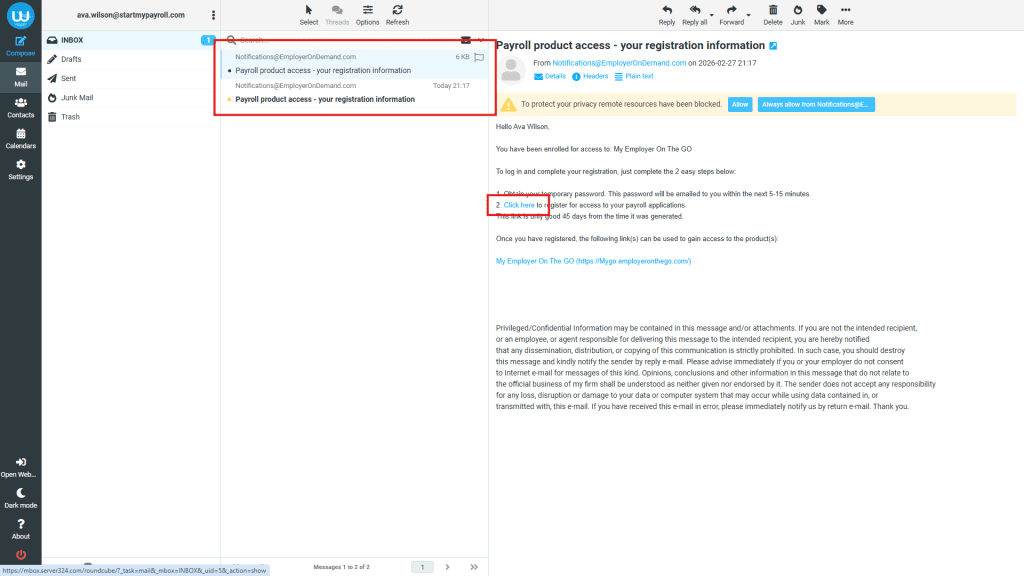
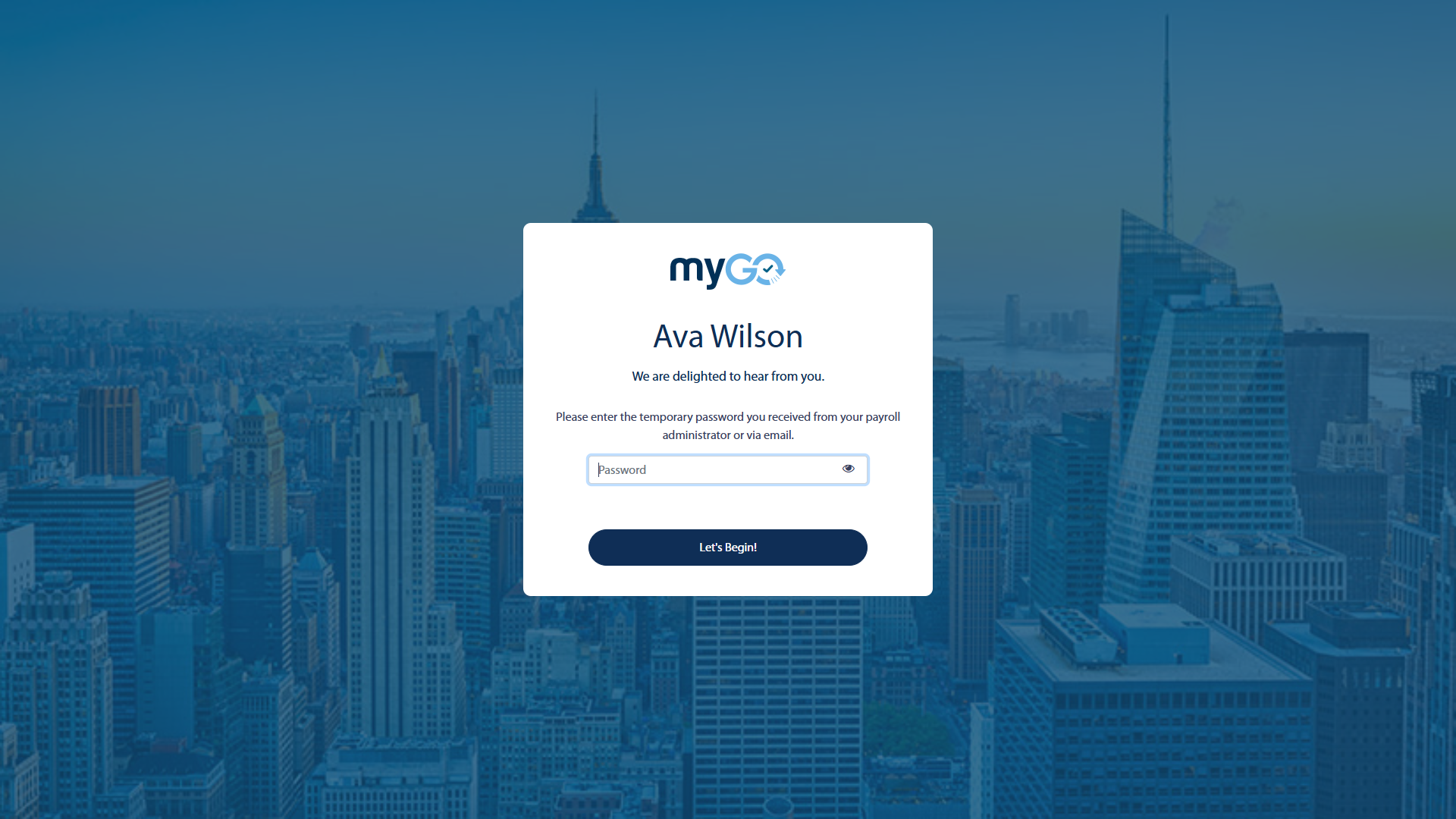
Copy the temporary password, then click the link in the first email to continue. You will be taken to the login screen shown below. Paste the temporary password and click Let’s Begin!
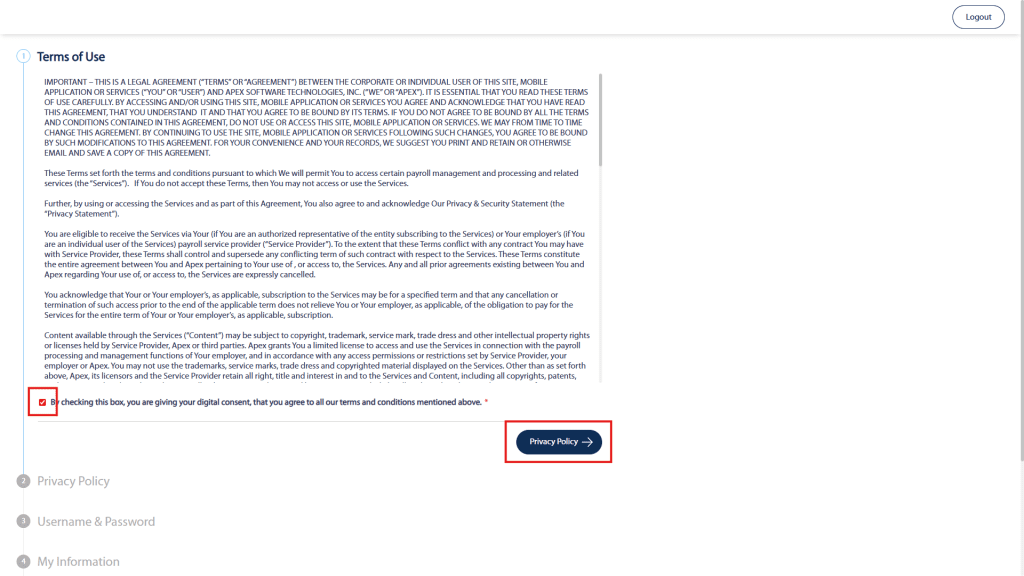
Step 1 – Terms of Use
Review the Terms of Use page.
- Check the consent box.
- Click Privacy Policy to proceed.
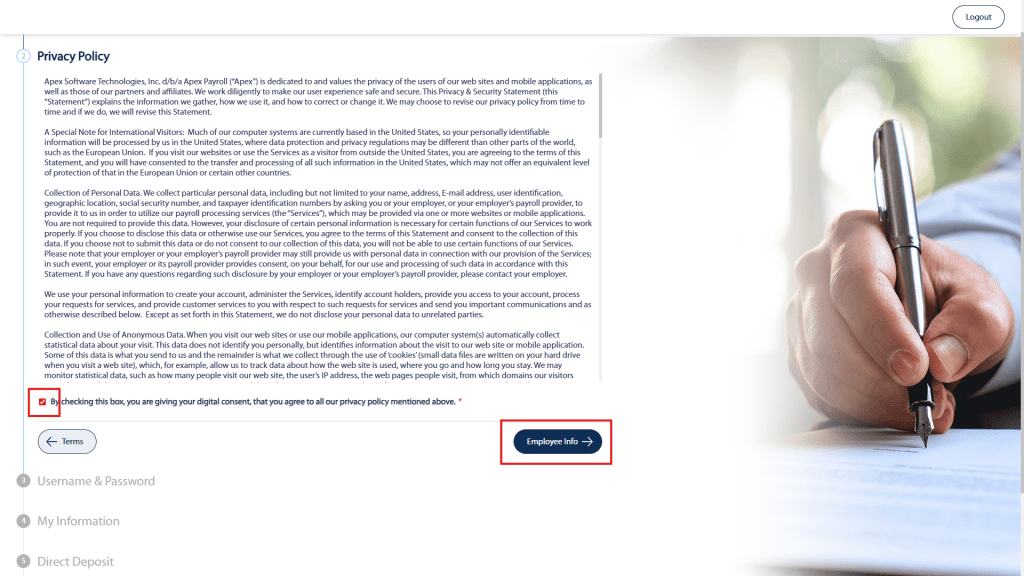
Step 2 – Privacy Policy
Review the Privacy Policy page.
- Check the consent box.
- Click Employee Info to continue.
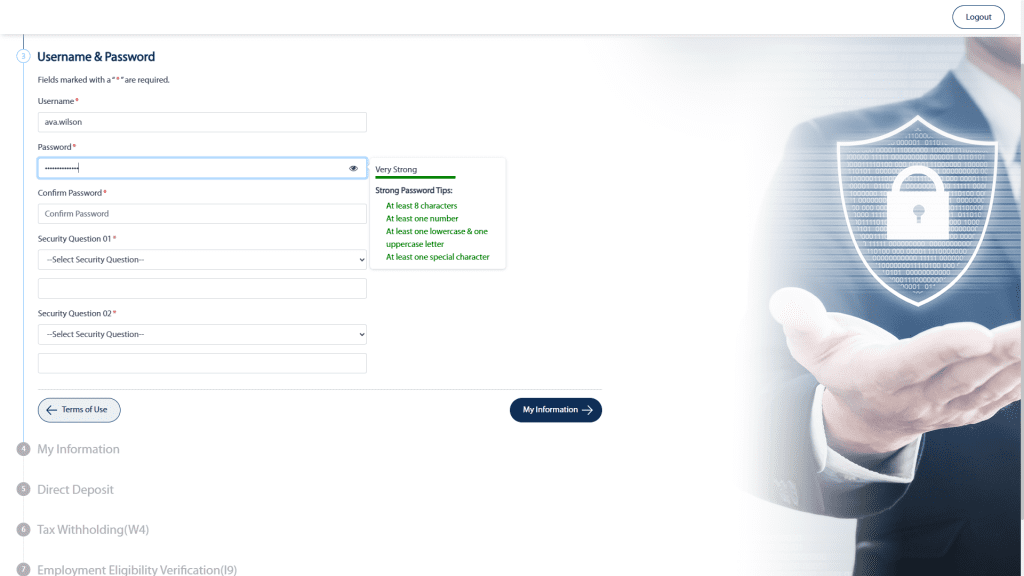
Step 3 – Create Username & Password
Create your permanent Username and Password.
- Follow the Strong Password Tips to ensure your password meets requirements.
- Complete both Security Questions and Answers.
- Click My Information to proceed.
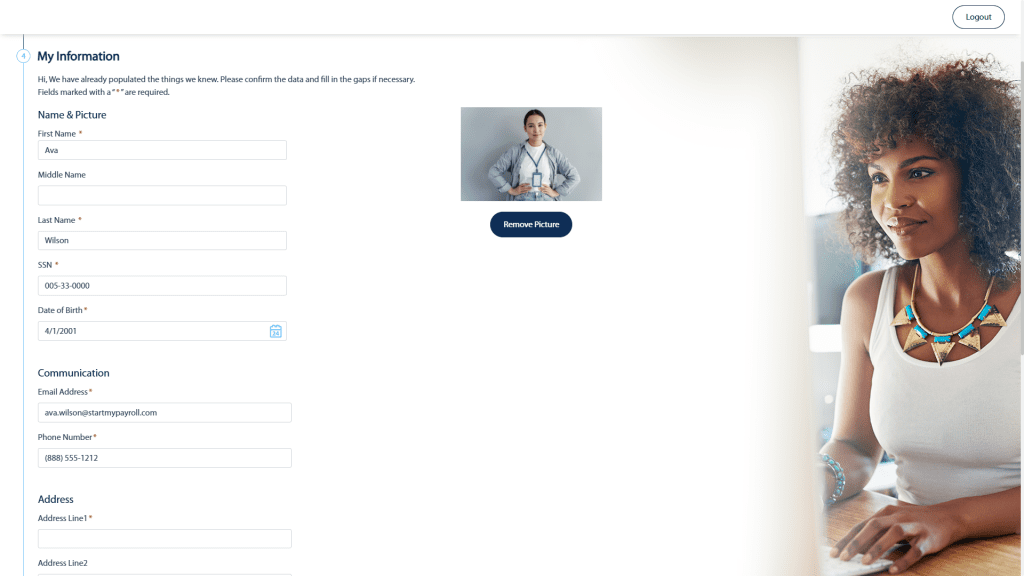
Step 4 – My Information
Enter your personal information. Fields marked with a red asterisk (*) are required. You may optionally upload a photo.
When finished, click Direct Deposit to continue.
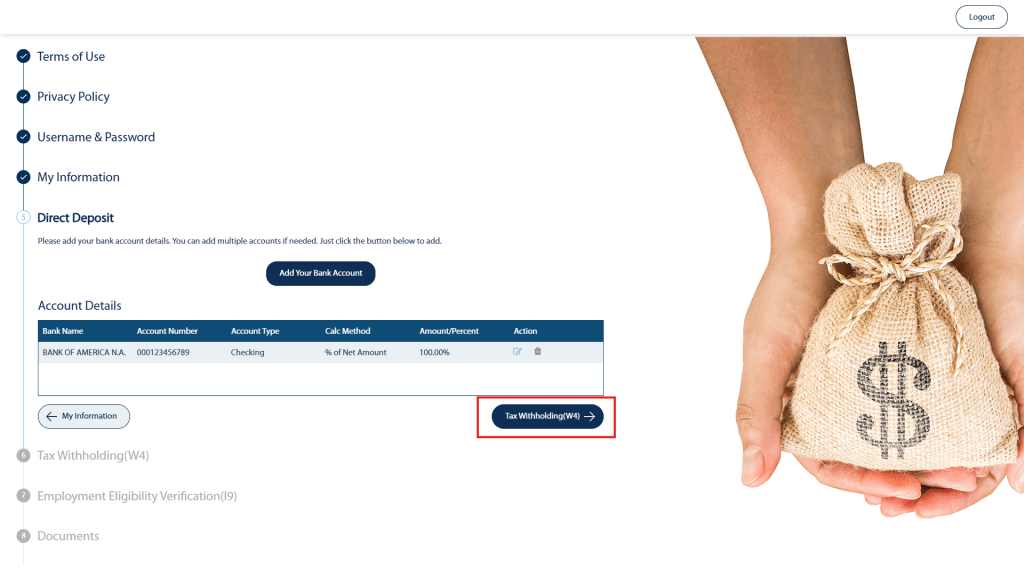
Step 5 – Direct Deposit
This section applies only if your employer requires or offers Direct Deposit.
- If Direct Deposit is required, you must complete this section to receive payroll.
- If Direct Deposit is optional, you may skip this section to receive a physical paycheck.
- If the Direct Deposit section is not visible, your employer does not offer Direct Deposit at this time.
Locate your bank’s Routing Number (Paper or Electronic — not Wire) and Account Number.
Click Add Your Bank Account to begin.
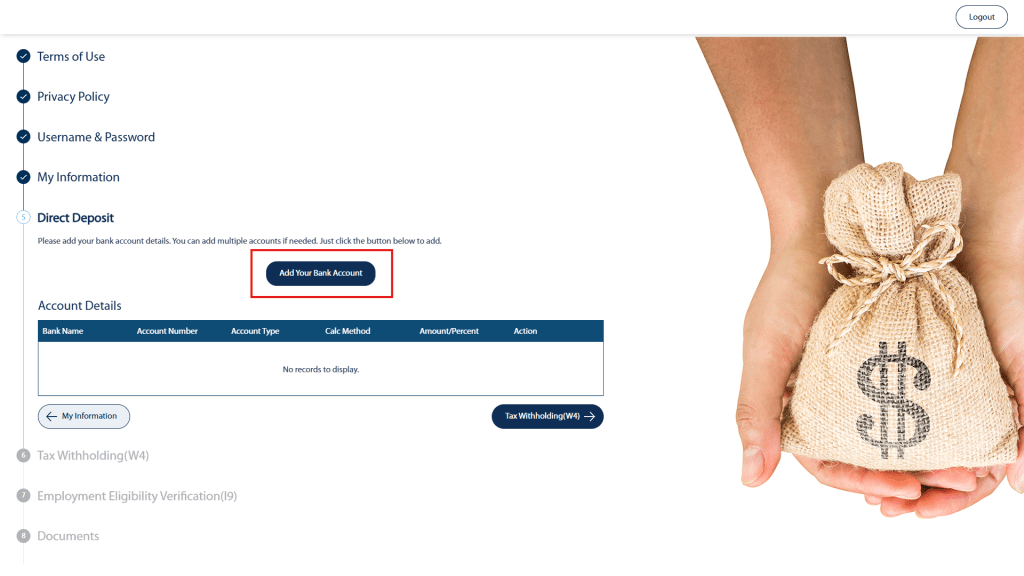
Enter your Routing Number. The Bank Name will auto-populate.
Note: The bank name may not match exactly due to mergers or system updates.
Enter your Account Number (twice for confirmation) and the Account Type (Checking or Savings).
Deposit to a Single Bank Account
- Select % of Net Amount under Calculation Method.
- Enter 100 in the Amount/Percentage field.
This will deposit 100% of your pay into this account.
Deposit to Multiple Bank Accounts
You may divide your pay using one of the following methods:
- Fixed Amount — Example: $100 to a savings account
- % of Net Amount — Example: 25% to a savings account
For your final account:
- Select Remainder as the Calculation Method.
- Leave the Amount/Percentage field blank.
The Remainder option will deposit the remaining balance of your pay into that account.
Only one account can be set as Remainder.
Click Save Account Details.
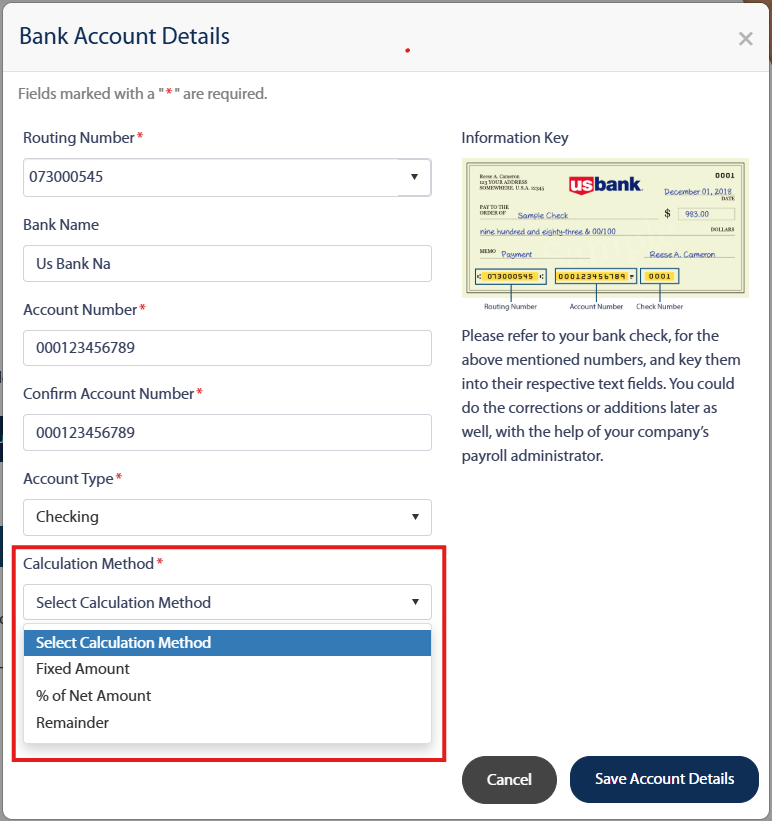
After adding one or more accounts, they will appear in the Account Details list.
You may edit or delete accounts using the buttons in the Action column.
When finished, click Tax Withholding (W4).
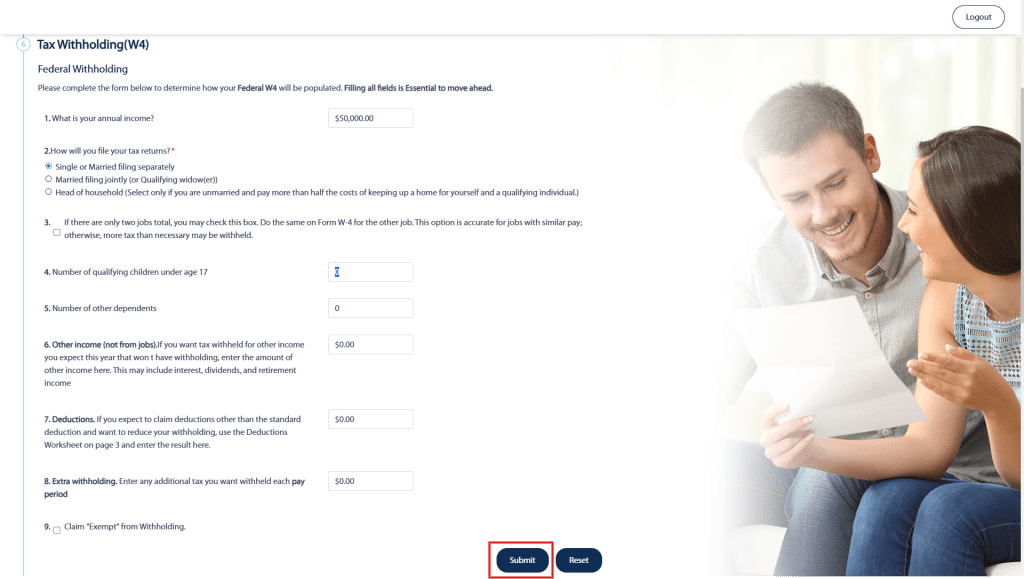
Step 6 – Federal Tax Withholding (W-4)
Complete all required fields on the Federal W-4 form.
When finished, click Submit.
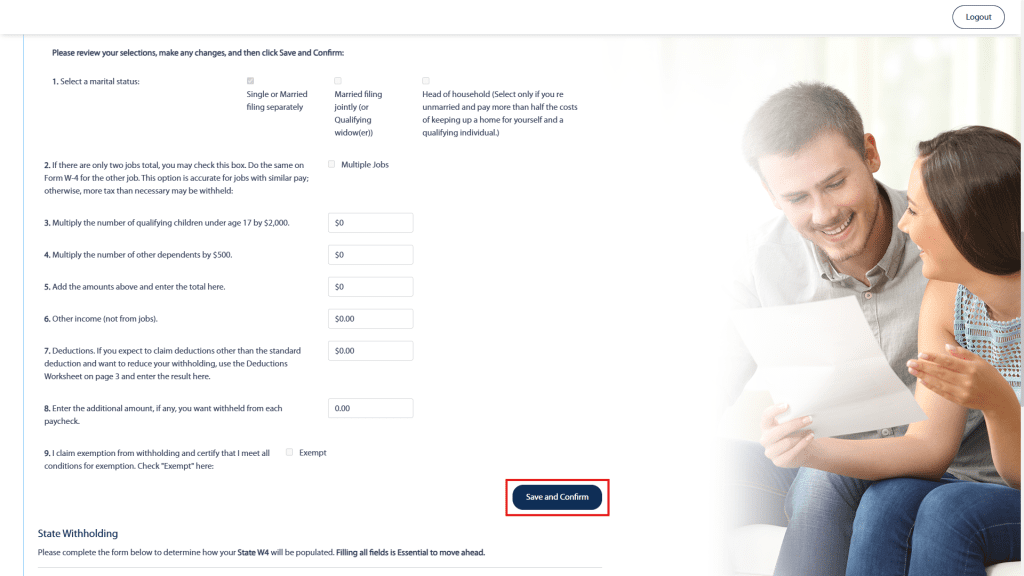
The system will check for errors and may prompt you to review your entries. If prompted:
- Review your selections.
- Click Save and Confirm at the bottom of the page to proceed.
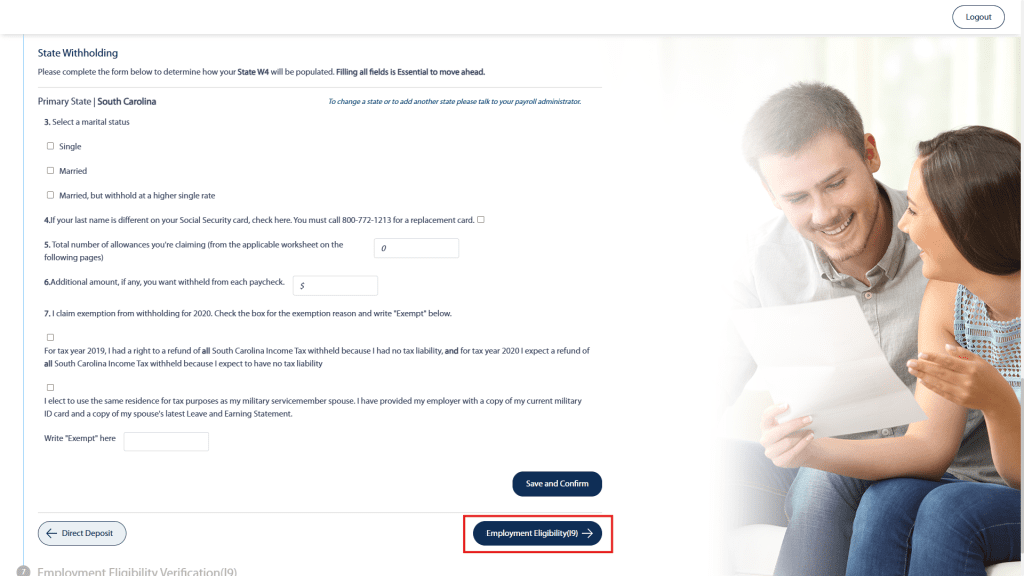
Step 7 – State Tax Withholding (If Applicable)
If you live or work in a state that has State Income Tax, you will be required to complete a State Withholding form.
Note: This form may vary depending on the state.
Complete all required fields and click Save and Confirm at the bottom of the page.
When you have completed the Tax Withholding section, click Employment Eligibility (I-9) to continue.
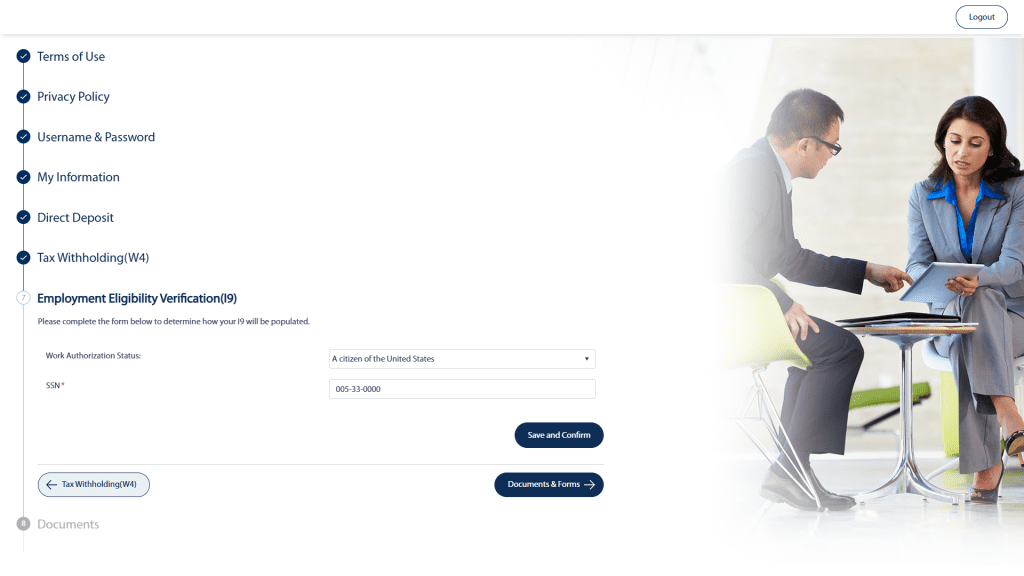
Step 8 – Employment Eligibility (Form I-9)
Confirm your:
- Work Authorization Status
- Social Security Number (SSN)
Click Save and Confirm.
When finished, click Documents & Forms at the bottom of the page to proceed.
Step 9 – Documents & Company Policies
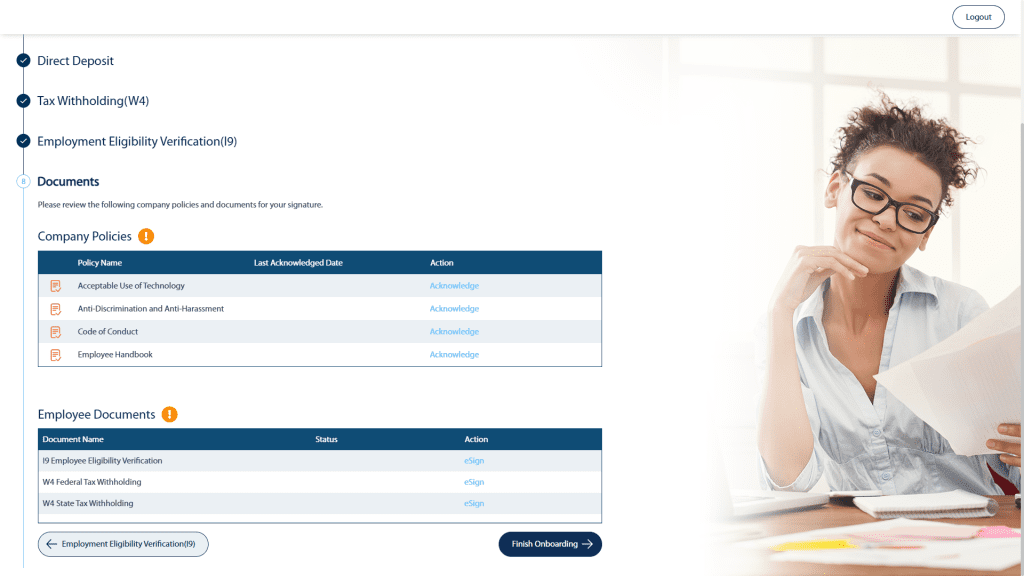
In the Documents section, you will see any Company Policies your employer requires you to review and acknowledge.
This section is customized by your employer. You may see multiple documents — or none.
You will also electronically sign (eSign) the Tax Withholding and Employment Eligibility forms you completed earlier.
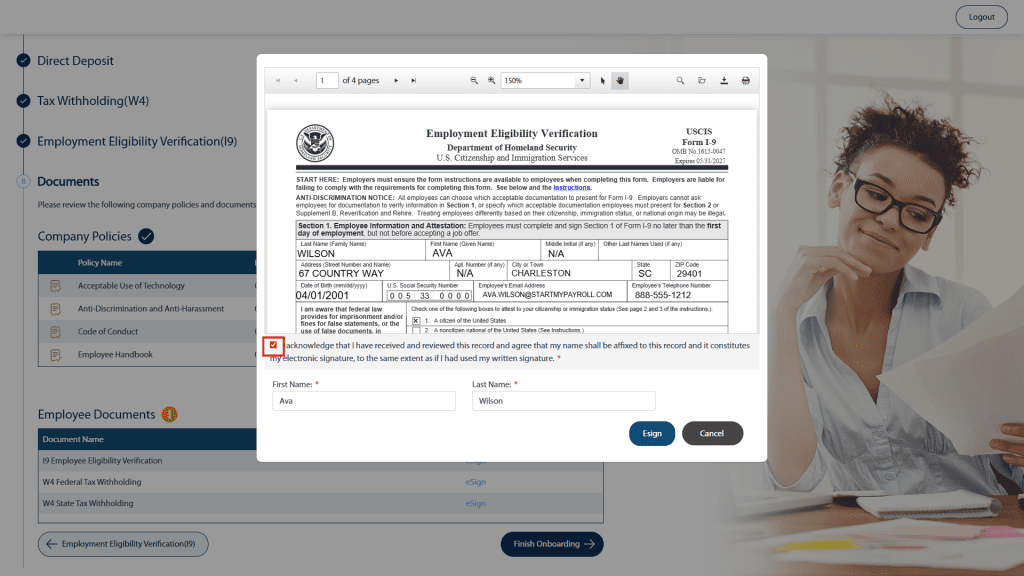
For each document listed:
- Click Acknowledge or eSign
- Enter your First and Last Name
- Check the “I Acknowledge” box
- Click Acknowledge or eSign to submit
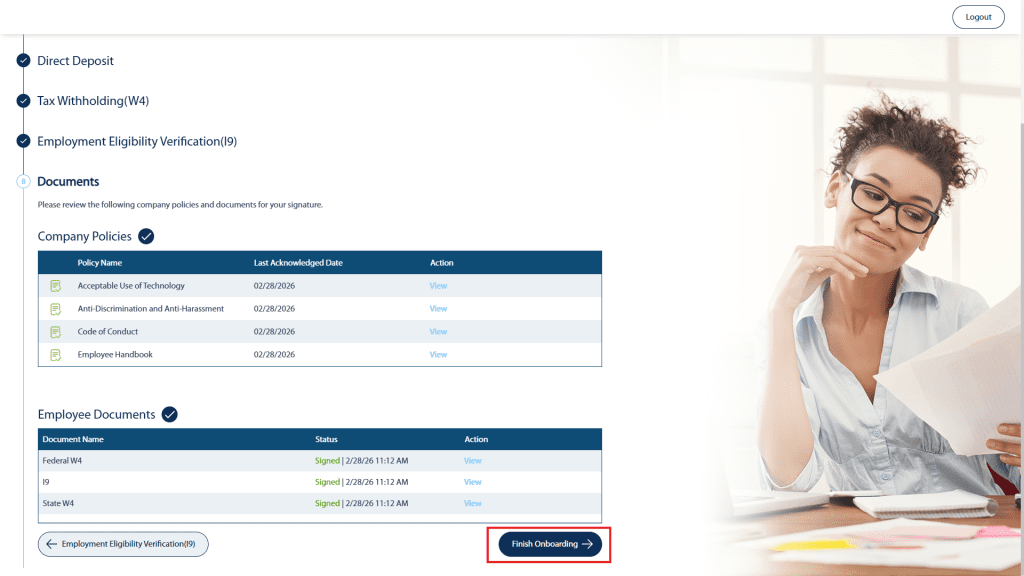
After all required documents have been acknowledged or electronically signed, click Finish Onboarding at the bottom of the screen.
Onboarding Complete
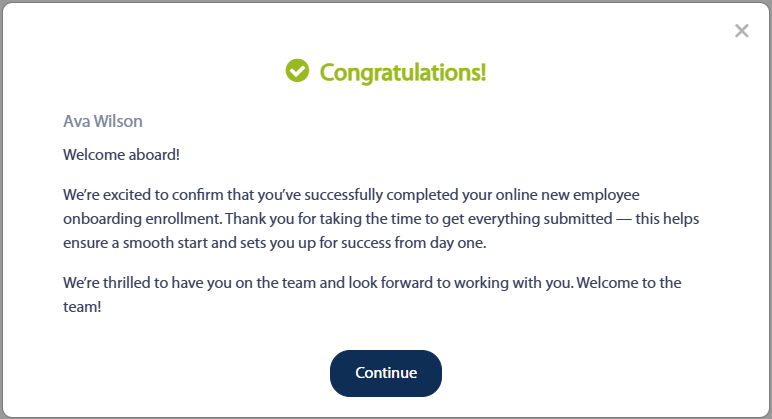
Congratulations and welcome to the team!
Click Continue to access your Employee Portal. You may now log in using the username and password you created during onboarding.
Be sure to visit the tutorial library to learn more about the features and tools available in your employee portal.